 ONA

What VAMToOna does
ToySerialController is the Virt-A-Mate plugin that turns a scene's animation into motion commands for stroker machines. Normally you need the machine plugged in to see what a scene will do. VAMToOna stands in for the machine: it listens to the plugin, turns the stream into six axis positions, and shows them on a 3D model on your screen.
That makes it useful for building and checking multi-axis scenes at your desk, and for capturing a scene's motion as funscripts you can replay or edit later. Everything runs locally on your PC.
How the motion travels
- VAM's ToySerialController sends motion over UDP (or a virtual serial port)
- VAMToOna reads it and tracks six axes: stroke, surge, sway, twist, roll and pitch
- The simulator it launches for you shows the motion live, up to 120 times a second
- Press F8 and the same motion is saved as funscripts
What you get
Live six-axis preview
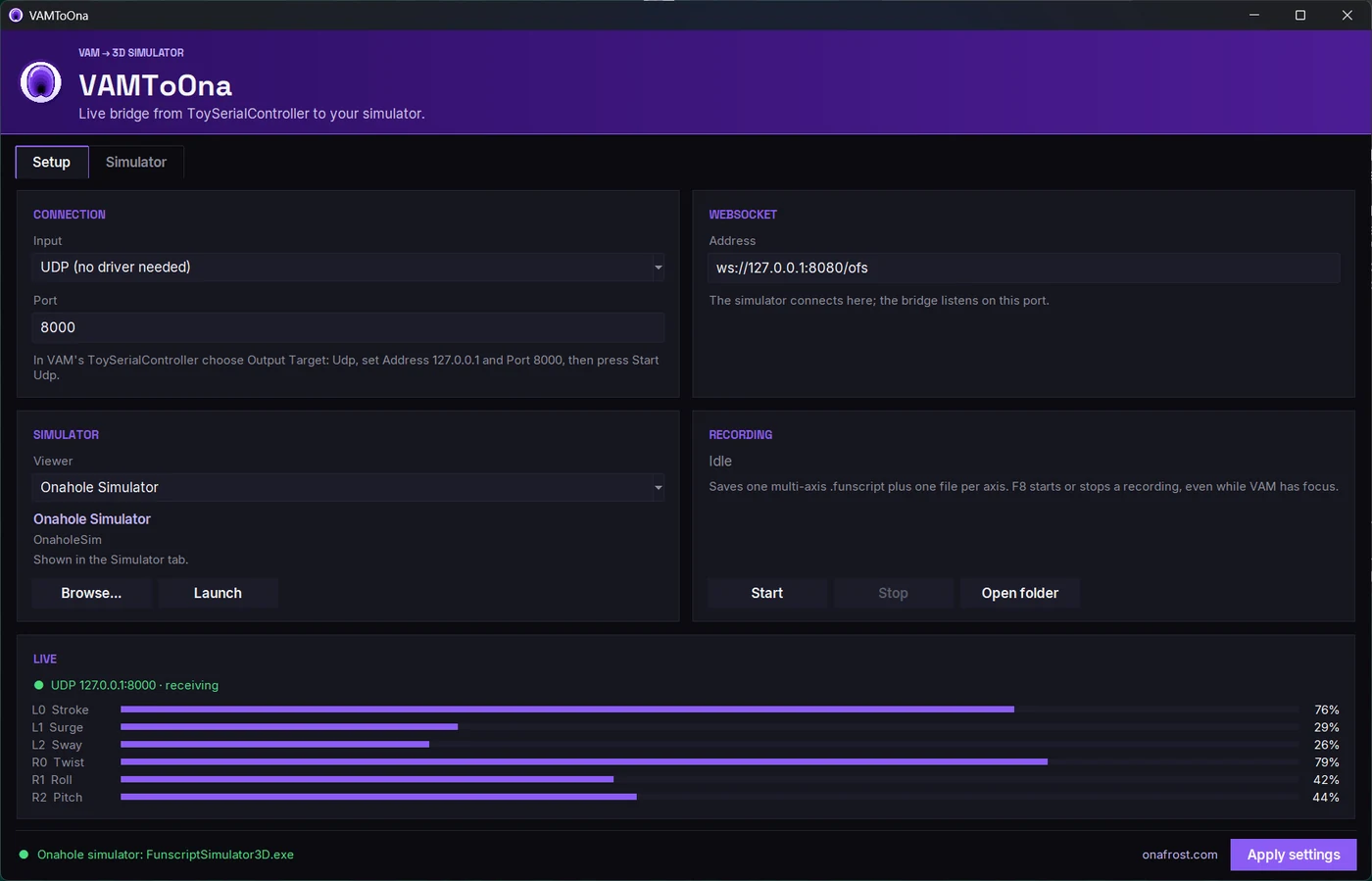
L0 stroke, L1 surge, L2 sway, R0 twist, R1 roll and R2 pitch, each with its own live bar so you can see exactly what the scene is sending.
Four viewers
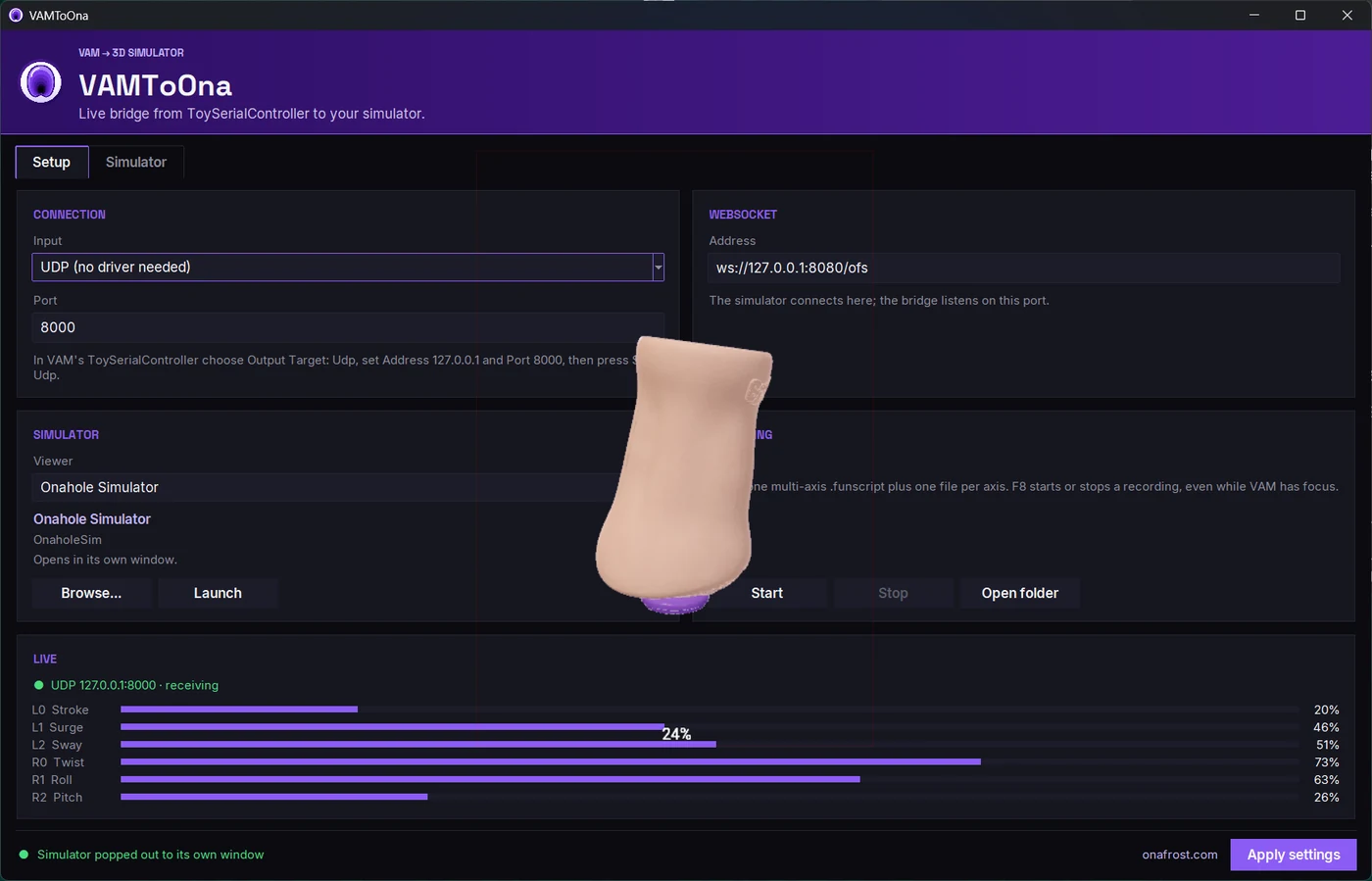
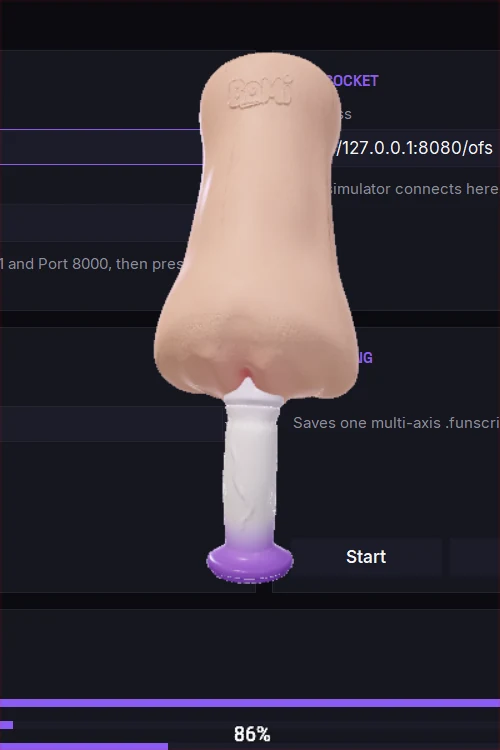
OFS Simulator3D, an Onahole Simulator with a skin-textured sleeve or riding piece, plus SR6 and OSR2 device viewers. Switch from one dropdown.
No driver needed
The default UDP input works out of the box. Serial input over a virtual COM pair is there if you prefer it.
Docked or floating
Run the simulator inside the app's Simulator tab, or pop it out into a window with no frame and no background that floats over VAM.
One-key recording
F8 starts and stops a recording, even while VAM has focus. You get one combined multi-axis funscript plus one file per axis.
Looks after itself
It starts and stops the simulator for you, remembers your settings, and refuses to open twice so the port is never taken by a second copy.
A look inside the app
These were taken from the app while it was receiving a six-axis test motion.
Two tabs, nothing hidden
Setup holds the connection, the viewer choice, recording and the live axis bars. Simulator shows the 3D view docked inside the app, with a Pop out button to float it instead.
In the simulator view, M switches between the sleeve and the riding piece, the arrow keys turn the camera, R resets it and H lists every key.
Set it up in a few minutes
This is the quick UDP route, which needs nothing extra installed.
-
Download and install
Get VAMToOna-Setup.exe and run it. The installer is not code-signed, so Windows SmartScreen may ask you to confirm before it starts.
-
Start VAMToOna
Leave Input on UDP (no driver needed) and the port on 8000. Pick a viewer in the Simulator card.
-
Point ToySerialController at it
In VAM, open the ToySerialController plugin and set Output Target to Udp, Address to
127.0.0.1and Port to8000, then press Start Udp. -
Play the scene
The Live card turns green and shows "receiving", the axis bars start moving, and the simulator follows along.
Prefer a serial port?
Switch Input to Serial and create a linked pair of virtual COM ports with com0com or VSPD, for example COM7 and COM8. ToySerialController writes to one half and VAMToOna reads the other, both at 115200 baud. The two halves must be different ports.
Record scenes as funscripts
Press F8 or the Start button while a scene plays, and again to stop. Each recording produces seven files that share one name:
- Combined file
- Every axis in one
_all.funscript. Ordinary players read the stroke from it directly. - Stroke file
- L0 on its own, as a standard single-axis funscript.
- Five axis files
.surge,.sway,.twist,.rolland.pitch, named the way OpenFunscripter looks for them next to a video.- Clean timing
- Timestamps follow real elapsed time, and only actual position changes are stored.
If something does not work
- The simulator does not move
- Check that the Live card says "receiving". If not, confirm the address and port in ToySerialController match the app, and that the scene is playing.
- The plugin panel in VAM is blank
- Restart VAM and load the scene again.
- "Port already in use"
- Another program owns the WebSocket port. Change the port in the address, click Apply settings, and let the simulator restart.
- Recording saves nothing
- No motion arrived during the recording. Start the scene first, then record.
Get VAMToOna
VAMToOna is free and licensed under the GNU AGPL v3. It needs Windows 10 or 11, plus Virt-A-Mate with the ToySerialController plugin to feed it motion. The download is hosted on Pixeldrain.
Virus scan and file hash
The installer has been scanned on VirusTotal, and you can read the full report yourself. To make sure your download is the same file, compare its SHA-256 hash with the one below.
SHA-256c4ddb17990949a38ef0b4ddbf3bd7ad8cf3c0f1067b7ee28f9aaa941875705de
In PowerShell, run Get-FileHash VAMToOna-Setup.exe in the folder you downloaded it to and check that the result matches.
Built on OFS_Simulator3D by OppositeOdd and the OpenFunscripter WebSocket API. Virtual serial ports are provided by com0com.
Ratings and comments
Tried VAMToOna? Leave a star rating and tell others how it worked for you.
Loading ratings...